Blog » How to Sync Offline Parts Orders With an ERP
How to Sync Offline Parts Orders With an ERP
How to Sync Offline Parts Orders With an ERP
A field technician identifies a blown hydraulic seal at a remote site, two hours from the nearest cell tower. They find the replacement part in their locally stored digital manual, solving the immediate mechanical problem. Moving that request into your business system requires a controlled process for syncing offline parts orders with an ERP. Connecting the field to the back office without an active internet connection introduces risks like duplicate submissions, stale pricing, and superseded inventory. Systems Online helps equipment manufacturers solve the first half of the equation by providing disconnected access to interactive schematics through EzParts. The second half requires configuring your integration layer to capture local intent, queue the data safely, and revalidate the transaction when connectivity returns.

Offline Catalog Access Is Not Offline ERP Ordering
Many implementations treat the electronic parts catalog and the enterprise resource planning (ERP) system as one continuous workflow, which breaks down when the network drops. A reliable integration separates the ability to view data from the ability to write transactions.
While putting a catalog on a tablet solves the part identification problem, a fully disconnected environment requires specific mechanisms for storing data and capturing user actions. Systems Online provides native mobile applications that download model-specific catalog data, store it locally, and synchronize the changed information. This delta-sync architecture ensures a technician can view schematics, hotspot relationships, and part numbers without waiting for massive file transfers over weak cellular connections. Additionally, OEMs can deploy catalog data to local networks or PC installations and update them via internet connectivity or physical electronic media.
Local order capture introduces a different requirement. A technician adding an item to an offline cart creates a local record of intent rather than reserving inventory or locking in a price. You must configure your specific EzParts deployment to support offline cart creation, because this capability depends entirely on your integration architecture.
Deferred ERP submission handles the final step. The local device transmits the queued payload to an integration layer, which then negotiates with the ERP to create the order. This boundary separates the catalog's job of identifying the part from the business system's job of fulfilling it.
Prepare the Data and ERP Contract
Before writing the integration, decide what document the offline transaction creates. Because a field service request might become a dealer sales order, a work-order parts issue, a purchase requisition, or a stock transfer, defining the target document dictates which fields the user must capture.
Build a controlled offline package that limits the data footprint, so the mobile offline profile can target the records a technician needs. Filter the download to the relevant equipment records, using custom filters and selected relationships. Microsoft’s guidance for offline data synchronization explains that these filters and relationships control the data included in sync, and that records are removed from the device when they no longer meet the profile’s criteria.
Define a strict data contract for the integration layer to capture enough context to survive the delay between part selection and ERP submission.
| Data Category | Required Fields |
|---|---|
| Traceability | Local order ID, device ID, user ID, capture timestamp, transmission timestamp |
| Customer Context | Dealer account, ship-to location, service location, equipment serial or VIN |
| Part Identity | Catalog part number, ERP item number, supersession reference |
| Line Details | Quantity, unit of measure, requested warehouse, backorder preference |
| Commercial Data | Cached price snapshot, currency, discount context |
| Catalog Context | Model, catalog version, schematic reference, bill of materials parent |
| Sync State | Draft, queued, transmitting, accepted, rejected, needs review |
Display a last-successful-sync timestamp in the mobile interface so the user knows how old the cached pricing and availability data is before they commit to an order.
Capture and Queue the Order Offline
Translating a technician's part selection into an ERP-ready transaction requires an ordered workflow that begins with creating a stable local record.
Step 1: Create the Local Draft
Assign a device-generated order ID the moment the user opens a new cart, and capture their identity, equipment model context, selected part identifiers, quantity, and unit of measure. Record the exact catalog revision alongside the timestamp of the cached price. Label the record "Draft" while the user edits quantities or adds items. These drafts remain fully editable, allowing a technician to add a hydraulic hose, check a specification, remove the hose, and adjust the quantity of the seals without generating network traffic or ERP logs.
Step 2: Persist a Replay-Safe Outbox
Once the technician finishes the cart, the device changes the status from Draft to Queued, which locks the local record. Store the finished order in a durable local outbox to ensure the payload survives application closures, operating system updates, or sudden device restarts. This outbox tracks the retry count, the last transmission attempt timestamp, and any human-readable error messages returned by previous sync attempts. Verify whether your specific deployment supports offline order queuing, because standard catalog installations frequently require active connections for cart submission. Once an order enters the queued state, freezing the payload prevents conflicting edits.
Step 3: Show a Truthful Sync Status
Design the application interface to reflect current conditions rather than labeling an order "Submitted" merely because the device stored it. Use exact statuses that match the integration layer, displaying "Queued" while offline, "Transmitting" when the connection returns, and "Needs Review" if the ERP rejects a line.
Reconnect, Revalidate, and Reconcile in the ERP
Returning to a coverage area triggers the synchronization sequence, where the integration layer controls the flow of data to prevent overwhelming the ERP or processing transactions out of order.
Step 4: Transmit When Connectivity Returns
The application first verifies that the device and the user session remain valid before opening the integration gateway. Once authentication succeeds, the integration checks whether the queued order remains eligible for transmission. Upload the records in the exact sequence they were created, preserving the original device-generated order ID. The gateway can use synchronous processing for immediate confirmation, which forces the connection to wait for the ERP to finish the document. For higher volume resilience, asynchronous processing allows the gateway to accept the payload, return an immediate acknowledgement, and process the backlog in a controlled queue.
Step 5: Revalidate Current Business Rules
Cached data ages quickly, so the integration checks the current ERP state before creating the order. Verify the customer account status, ship-to address, and item mapping to determine if a selected part was superseded while the device was disconnected. Systems Online's integration capabilities cover inventory, pricing, and order-placement rules that ensure the ERP makes the final commercial decision. Treat cached availability as a field convenience rather than a binding reservation.
Step 6: Create and Reconcile the ERP Document
Map the revalidated data into the specific ERP document structure by defining how kits and bills of materials translate into line items. Some systems require the parent kit number, whereas others demand exploded components. Once processed, return the generated ERP order number, accepted quantities, and any error messages to the mobile device.
Prevent Duplicates and Handle Failure Modes
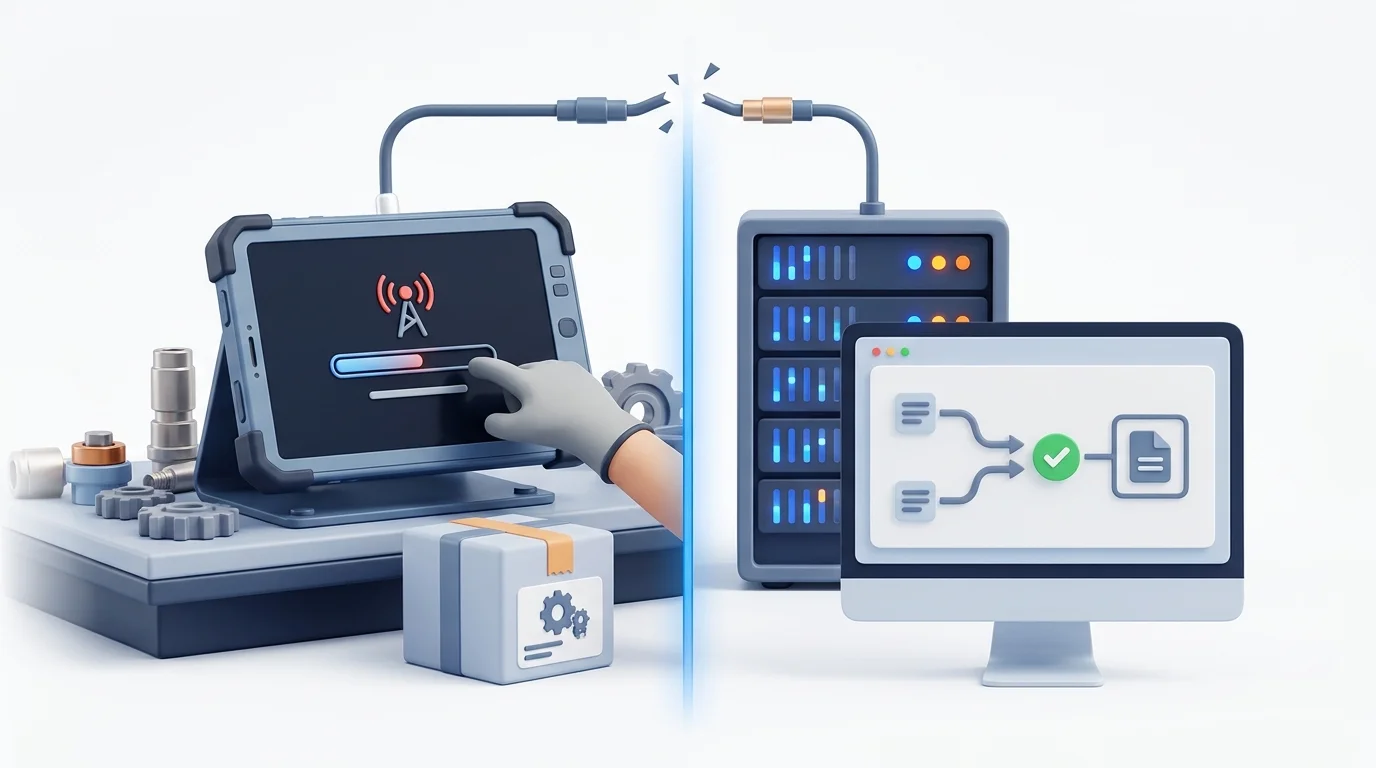
A dropped connection during transmission creates ambiguity. When the device sends the payload and the ERP creates the order, a network failure before confirmation might prompt the device to resend the payload, creating a duplicate shipment.
Make Retries Replay-Safe
Prevent duplicates by checking a consistent source identifier before creating an order. Oracle Fusion Cloud SCM documents SourceOrderSystem and SourceTransactionId as components of an OrderKey that identifies a sales order, and the API can retrieve an order through that key. It describes SourceTransactionId as uniquely identifying the transaction in the source application and says each change order must use the same value as the new sales order.
Resolve Stale Data and Conflicts
Establish a strict policy for handling changed information. When a part price increases or inventory drops to zero while the device is offline, flag the line item and route the transaction to a manual review queue rather than silently overwriting the submitted order. The technician or a back-office administrator can then approve the change or select an alternative component.
Define a partial-order policy to handle scenarios where the ERP rejects a single line item, such as a superseded part lacking a replacement. The integration needs rules determining whether the ERP accepts the valid lines while leaving the exception in a "Needs Review" state, or rejects the entire header until the technician corrects the error. Passing line-level results back to the outbox allows the user to see which component requires attention while the rest of the order moves to fulfillment.
Separate Technical Errors From Business Errors
Categorize failures to determine the correct response. Technical errors include gateway timeouts, temporary network drops, and transient service outages, which the integration layer retries automatically. Business errors involve invalid units of measure, deactivated dealer accounts, or superseded parts lacking a direct replacement. The integration layer halts processing for business errors and requests human intervention, because retrying a bad part number fails.
Adapt the Workflow to SAP, Oracle, Dynamics, or Epicor
Because every business system handles external order injection differently, map the general workflow to the specific constraints of your target platform.
SAP S/4HANA
SAP S/4HANA offers multiple pathways for integration, including the Sales Order A2X OData V4 API that allows external systems to create, read, and update sales orders. This API supports both synchronous processing for immediate confirmation and asynchronous processing for high-volume scenarios. When updating existing records or sending corrections, it uses ETag-based optimistic concurrency control. The client sends the appropriate version token, preventing a delayed field update from overwriting a newer change made by the back office. Since SAP documentation versions update frequently, confirm your exact edition before relying on specific deep-insert structures for headers and items.
Oracle Fusion Cloud SCM
Preserve the offline transaction ID throughout the workflow by mapping the device identity to the source system field and the local order ID to the transaction field. This separation ensures the customer-facing identifier remains consistent even as Oracle generates its internal fulfillment documents.
Dynamics 365 Supply Chain Management
Dynamics 365 can map a customer-specific external item number to the standard internal item number and record associated dimensions such as configuration, size, and style when they are needed to identify the item. Microsoft’s guidance for external item identifiers explains that these identifiers are set up on the customer account and can be used to find and add products to sales orders. Selecting an identifier populates the item number, product name, and other related fields on the sales-order line.
Epicor
Epicor Kinetic and earlier versions provide extensive REST services for order manipulation, enabling you to map the catalog payload to your specific Epicor sales order or service job material object. Since Epicor deployments vary widely based on custom business objects, verify the REST service interface, external-ID handling, and duplicate-prevention semantics for your exact product version. Avoid assuming the system natively deduplicates incoming API calls without a specifically mapped unique identifier field, and plan to handle Epicor-specific responses gracefully within the mobile interface.
Test the Workflow and Plan the EzParts Deployment
Moving a sync process from development to production requires thorough validation. Use this checklist to confirm your implementation handles field realities safely.
Pre-Launch Test Checklist
- Define the exact ERP document an offline transaction creates.
- Confirm which system owns part relationships, pricing, and inventory.
- Display a last-sync timestamp on the mobile interface.
- Generate a stable external order identifier before beginning transmission.
- Map OEM, dealer, and customer item numbers to the ERP equivalents.
- Verify that your deployment specifically supports offline order writes.
- Revalidate pricing, availability, and account status upon reconnect.
- Test a dropped connection immediately after the ERP accepts the order to verify duplicate prevention.
- Test superseded parts, partial line acceptance, and stale pricing scenarios.
- Document device data retention, access revocation, and audit procedures.
FAQ: Offline Parts Orders and ERP Sync
Can technicians place parts orders while completely offline? Technicians can capture an order locally if the deployment includes offline order queuing. The order only finalizes when the device reconnects and the ERP validates and accepts the transaction.
What data should be downloaded before a technician leaves network coverage? Download model-specific schematics, part numbers, supersession chains, customer identifiers, units of measure, and a recent cache of pricing and availability.
How are duplicate orders prevented after a failed upload? The mobile device generates a stable source transaction ID, which the integration layer sends on every retry. The ERP checks this ID and returns the existing status instead of creating a second order.
What happens if a part is superseded while the user is offline? The application preserves the selected catalog part number. When connectivity returns, the integration resolves the part to the current ERP item during validation and flags the change for review.
Connect Catalog Access to the Aftermarket Workflow
An effective disconnected strategy requires a platform that manages interactive data delivery across every channel rather than relying on static PDF downloads. Systems Online gives equipment manufacturers a way to deliver interactive parts information across online, mobile, and distributed environments while connecting catalog workflows with business systems for inventory, pricing, and order status.
Connect interactive parts identification with your existing aftermarket and ERP workflows. Explore EzParts Enterprise to discover how native mobile applications and integration capabilities support your OEM’s disconnected catalog strategy.
Modified on: 09/02/2026